
UX/UI · AI-built
Talk2Me Nice
An AI English tutor for students, teachers and schools — designed from scratch in Figma, then built as a working prototype in Figma Make, by me.
The brief
Kids learning English — from about six years old to early teens, elementary through middle school — need low-pressure speaking practice between lessons. Teachers need to see who is practicing and on what; schools need to run it all across many classes. The client came with a name, a logo she had made herself and wanted to keep, and the idea of a friendly chat partner.
I designed the product end to end — flows, screens, a component library — and then built the live prototype myself in Figma Make, so the client could click through every role on real screens instead of a slide deck.
Three roles, one system
The student's motivation loop feeds the teacher's view, which rolls up to the school's.
Student
Practice and see progress
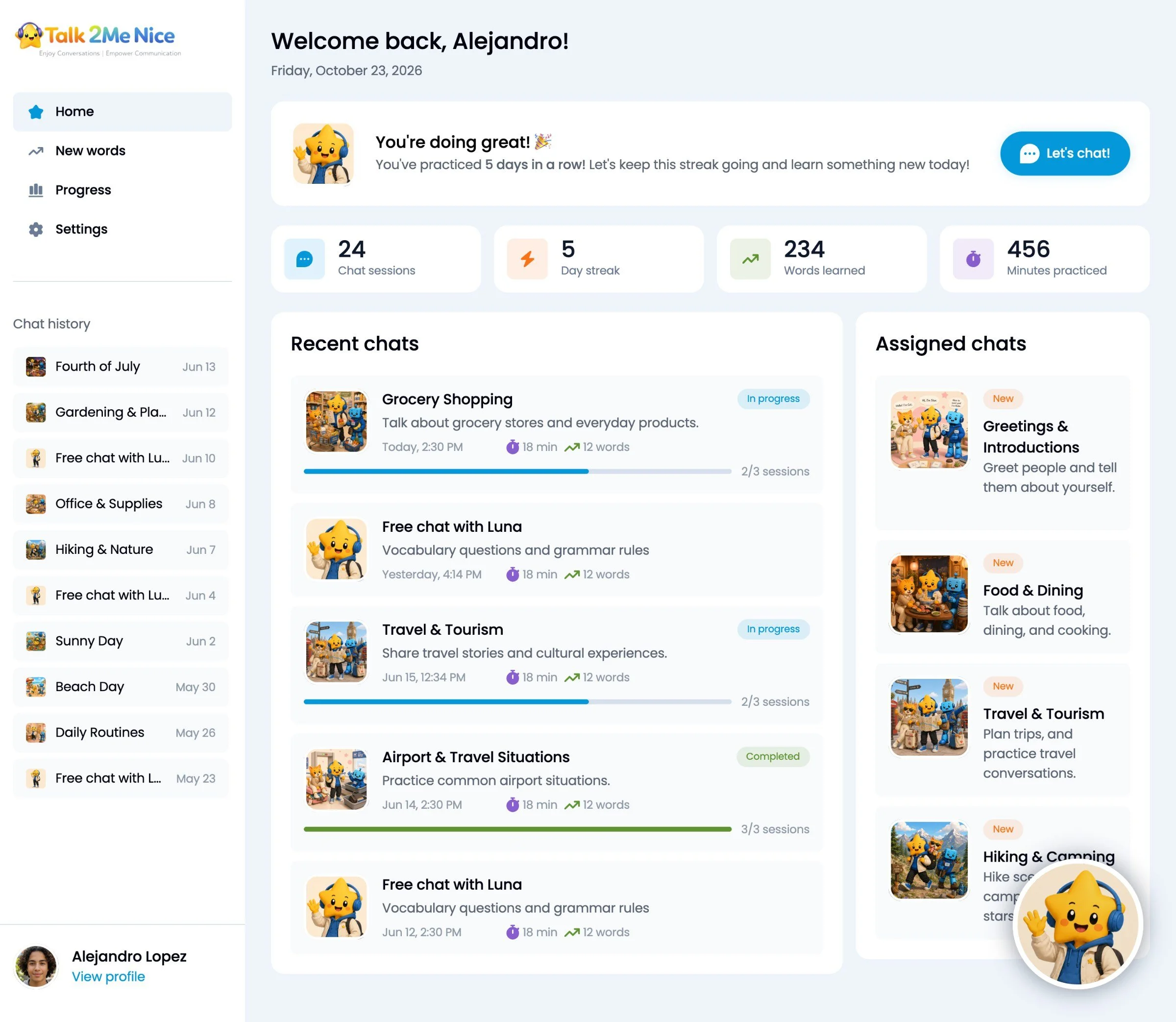
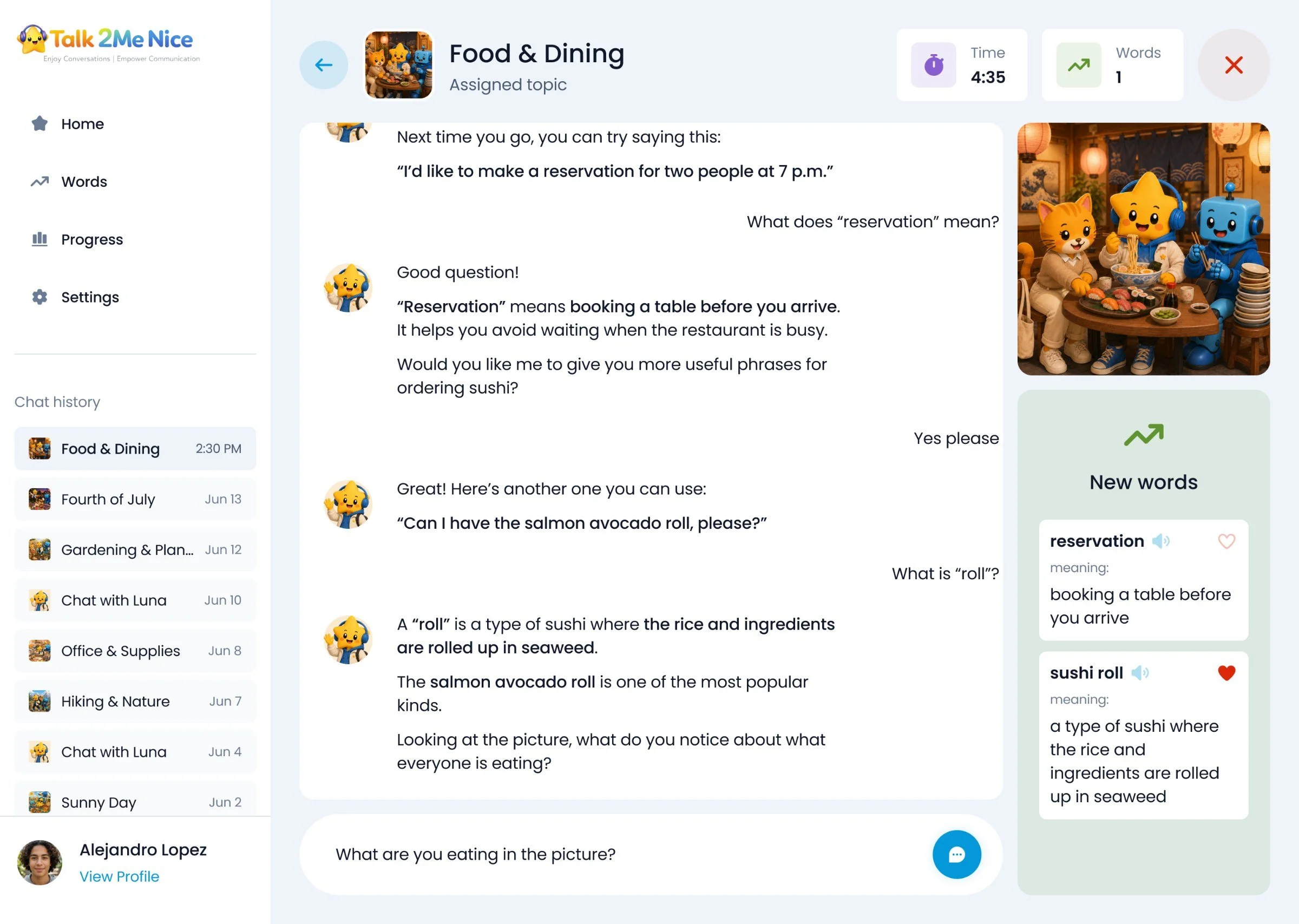
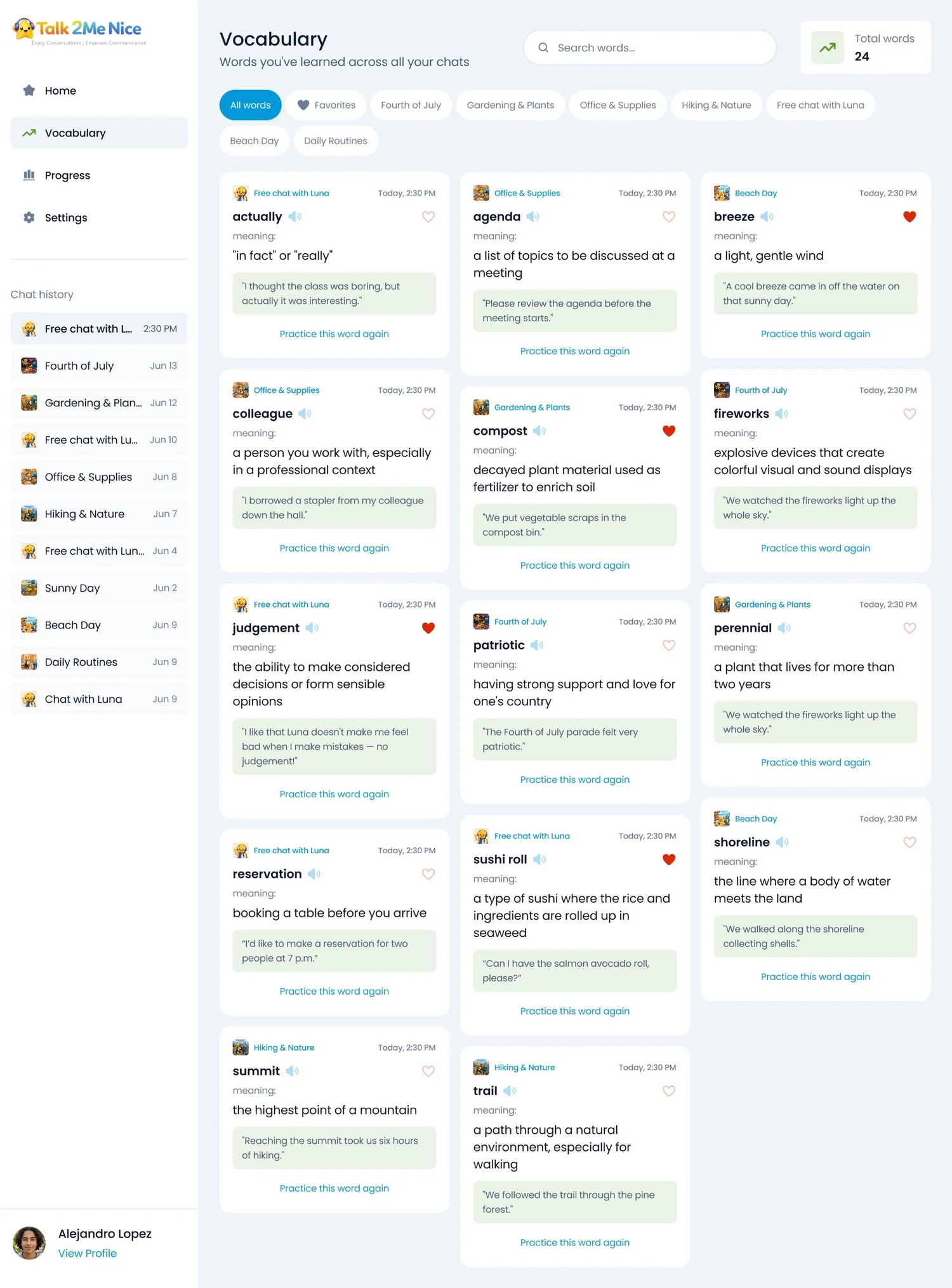
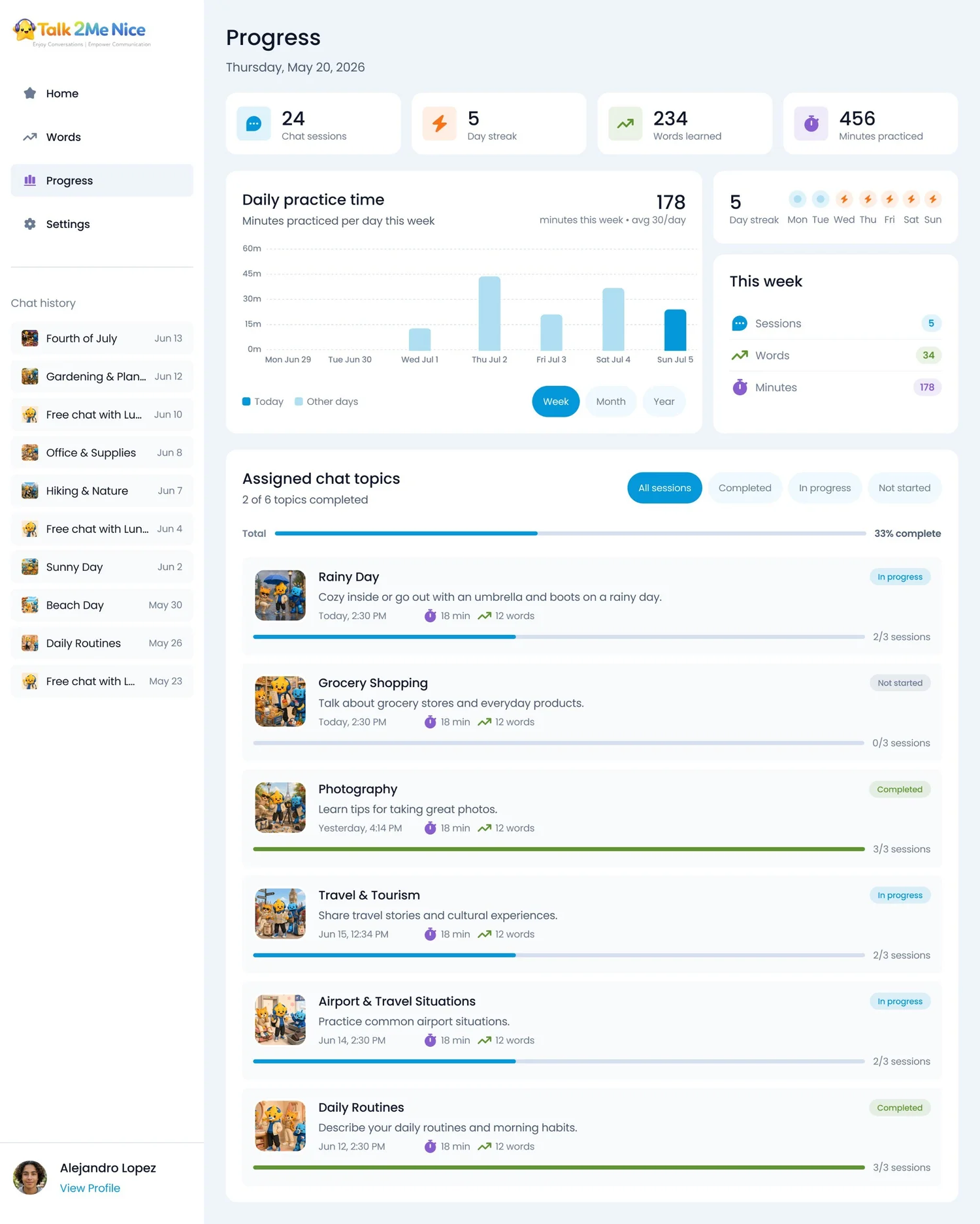
A home with a streak, chat sessions and words learned; chats with Luna, the tutor character; a word list that fills while you talk; progress by day, week and month.
Teacher
Assign topics, follow every student
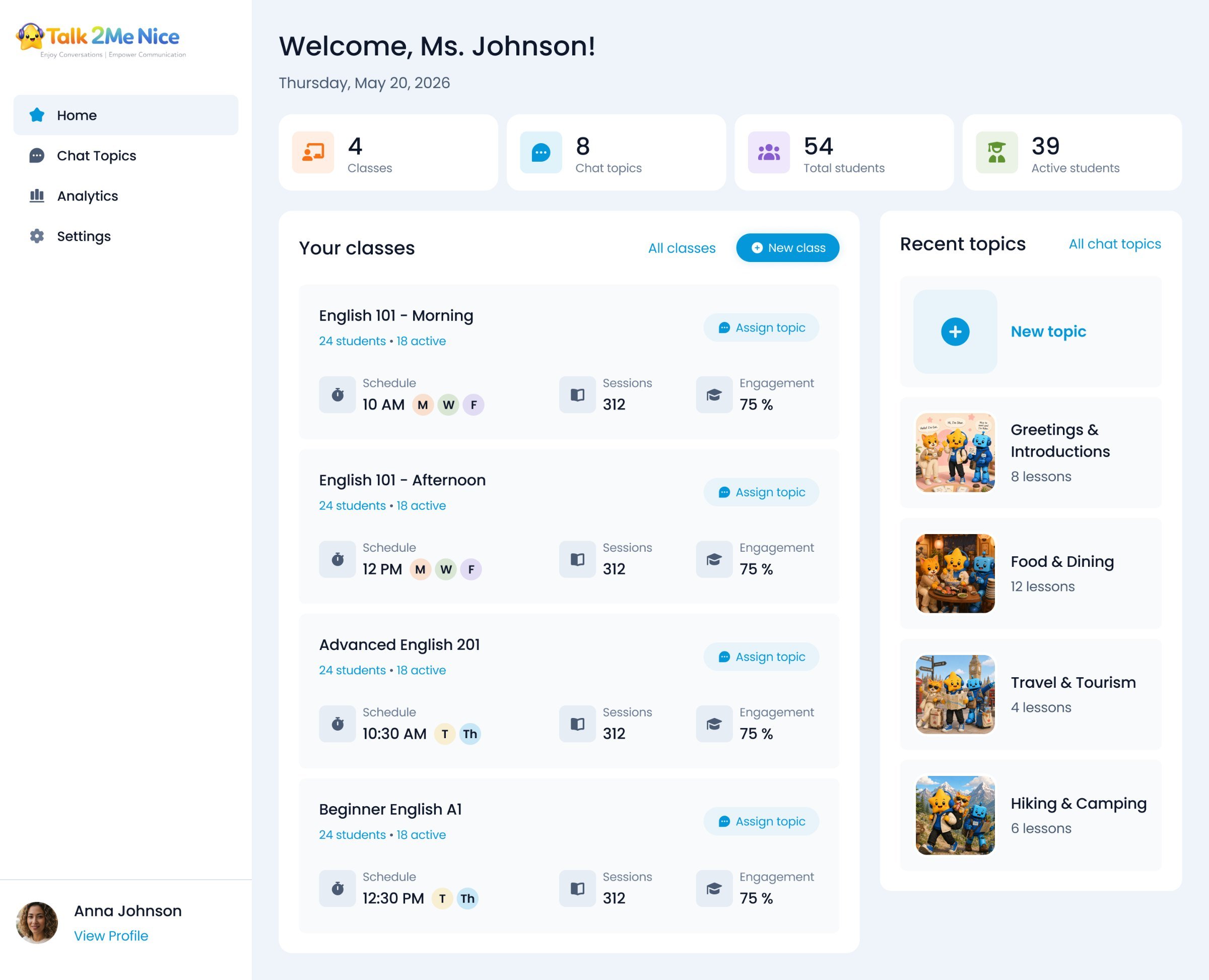
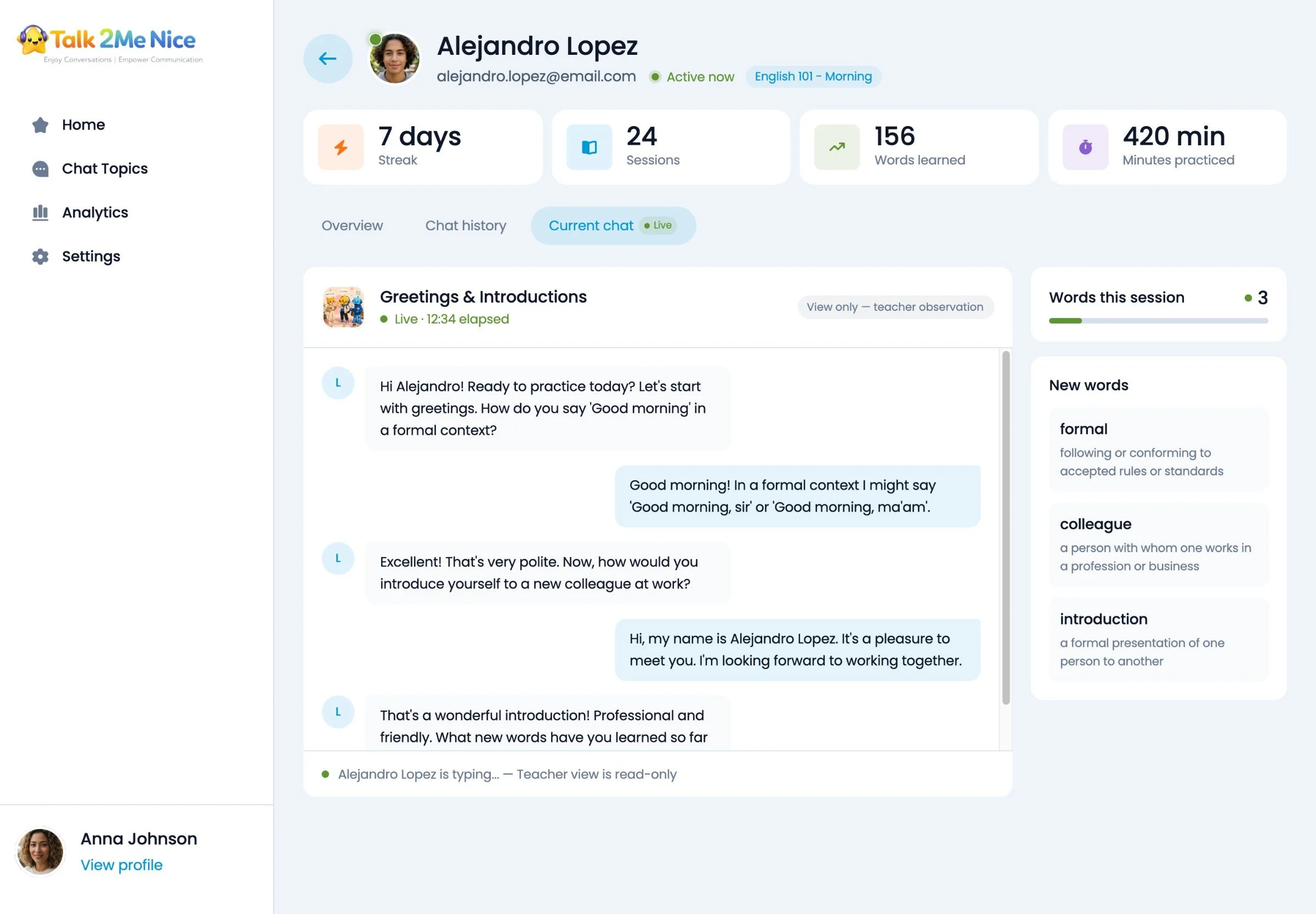
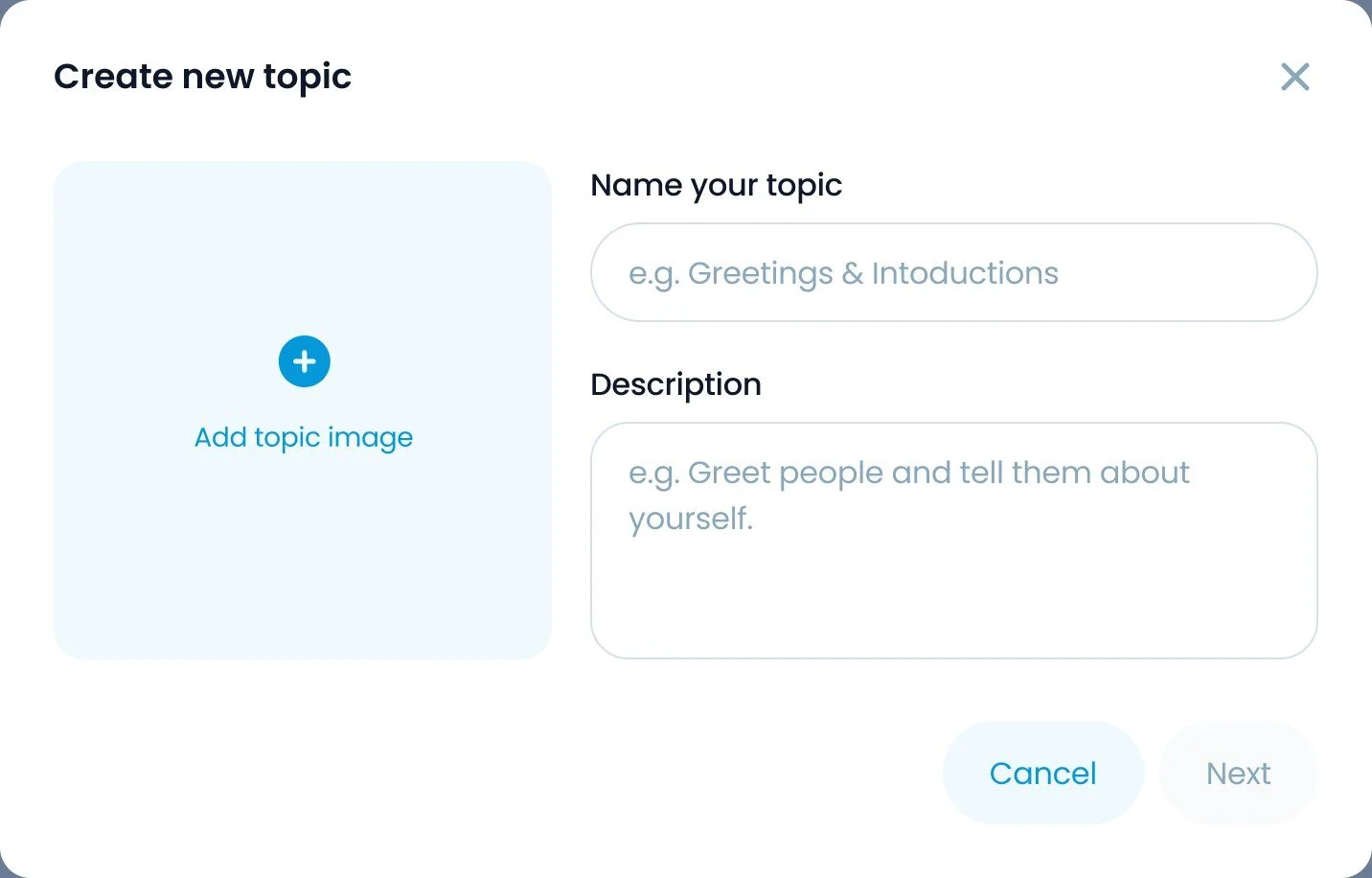
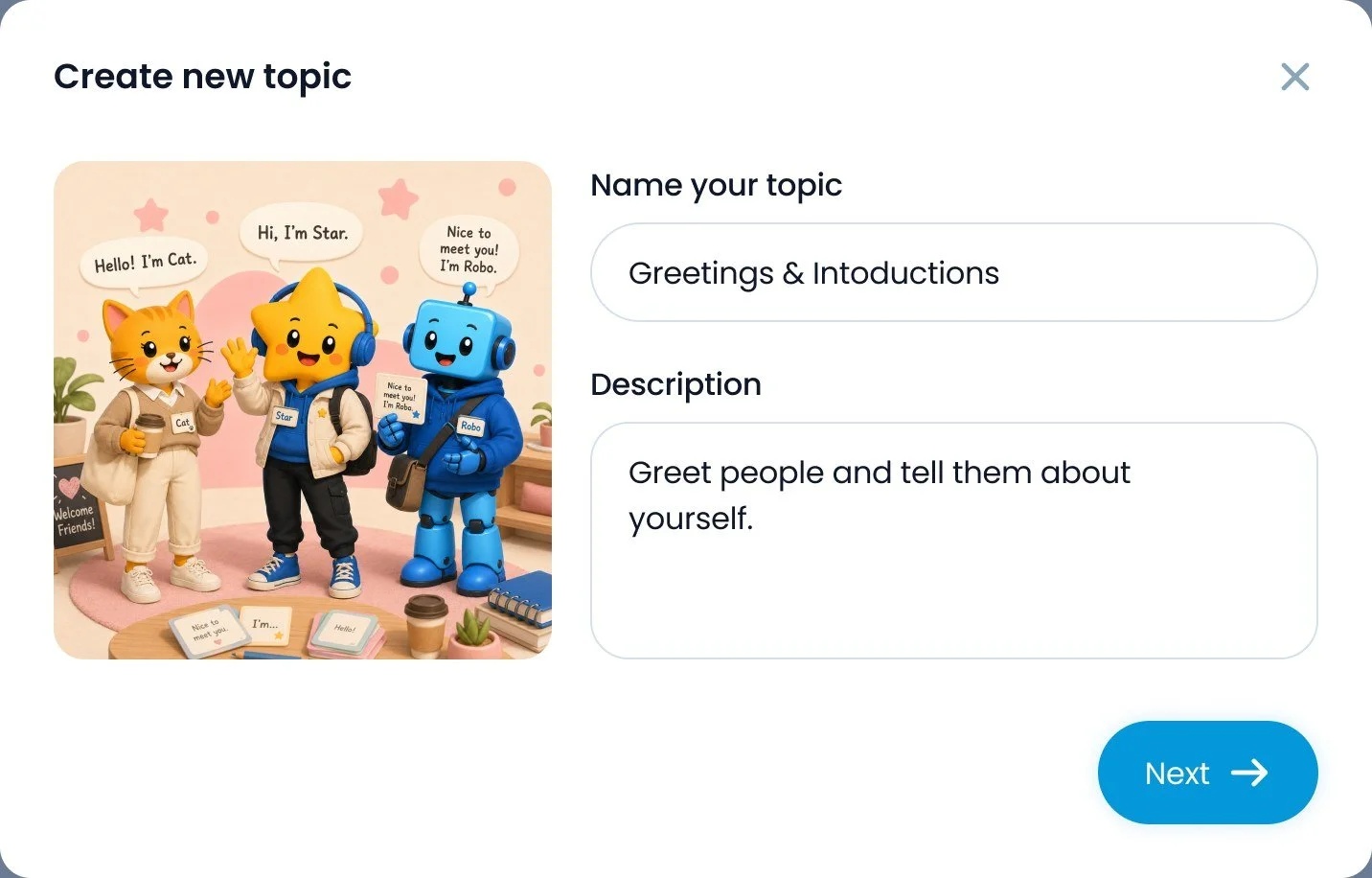
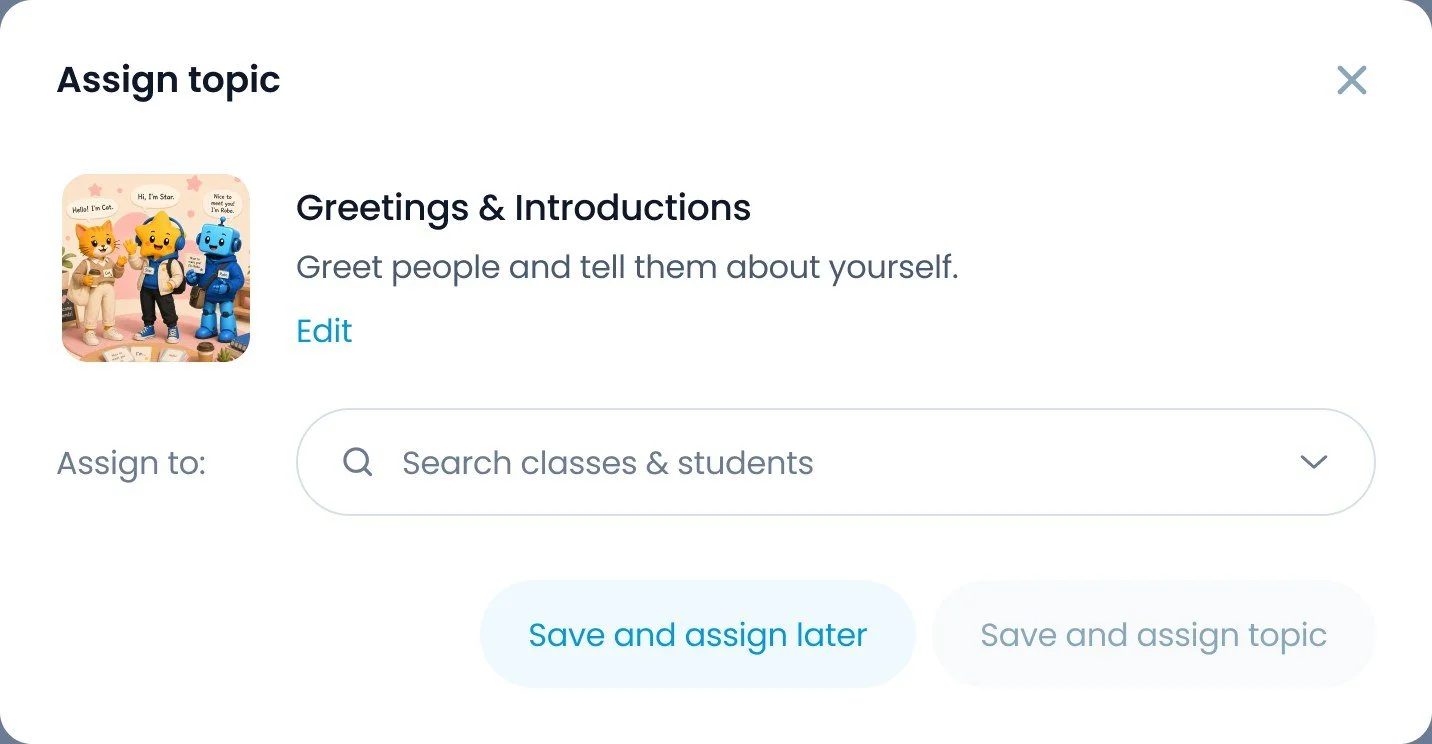
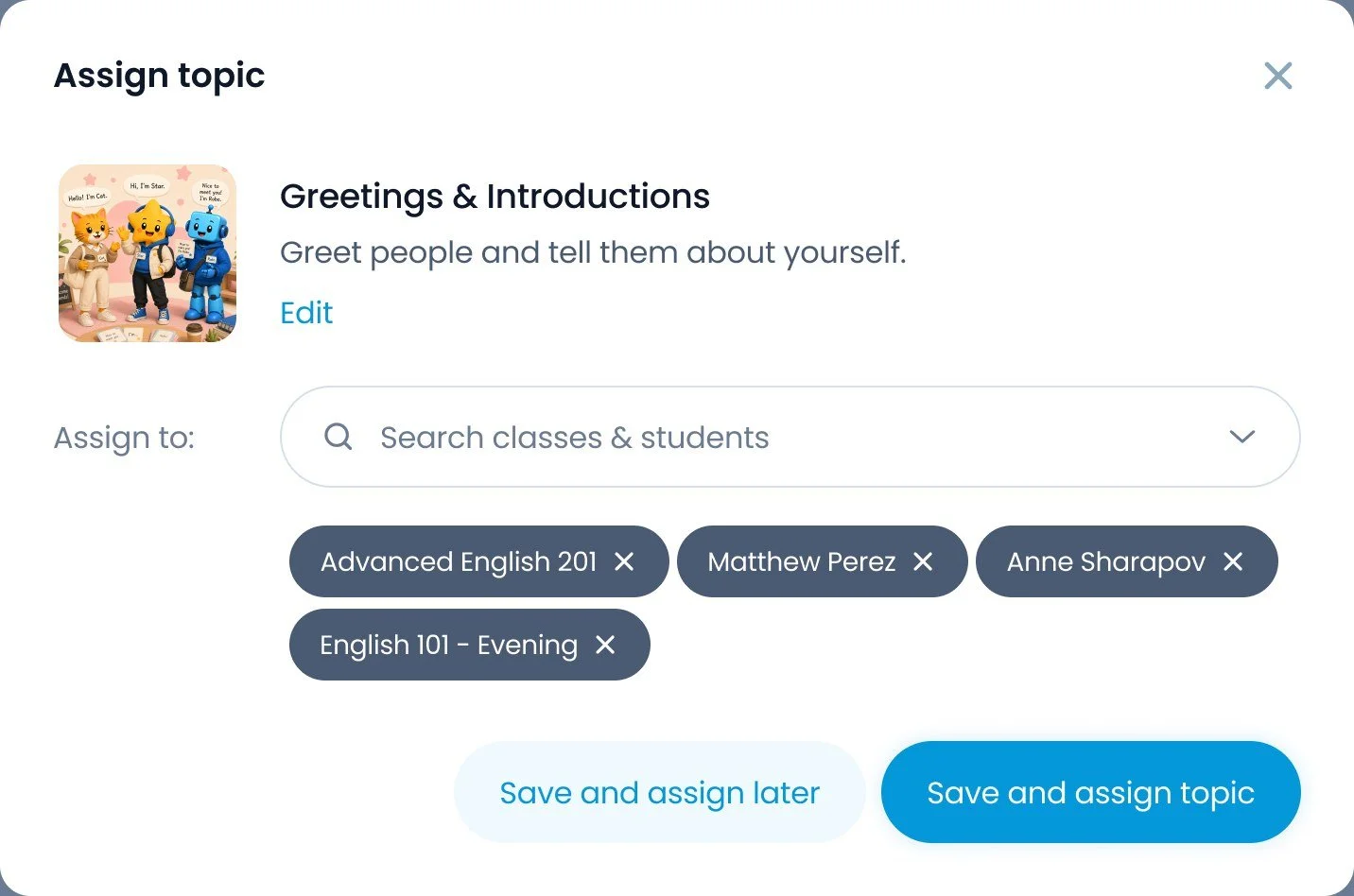
Classes with engagement at a glance, topic assignment in two steps, and a page for each student where the teacher follows their progress and watches their current chat live, read-only.
Admin
Set up schools
Schools, teachers, classes and students in one place, with a short school setup wizard.
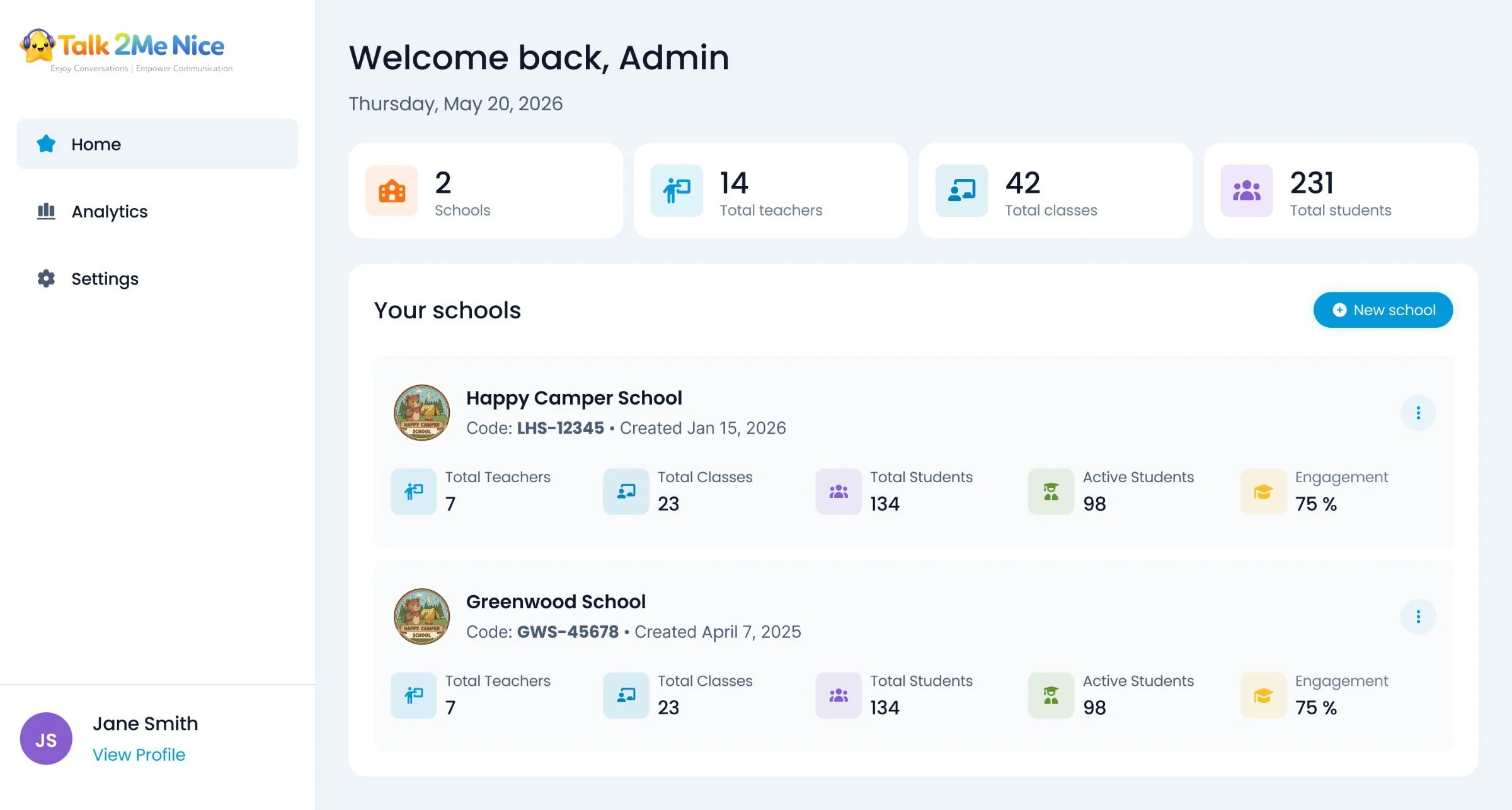
One status language across all three roles: a student and their teacher see the same Not started / In progress / Completed pills and the same “0/3 sessions” counts.
Luna and friends
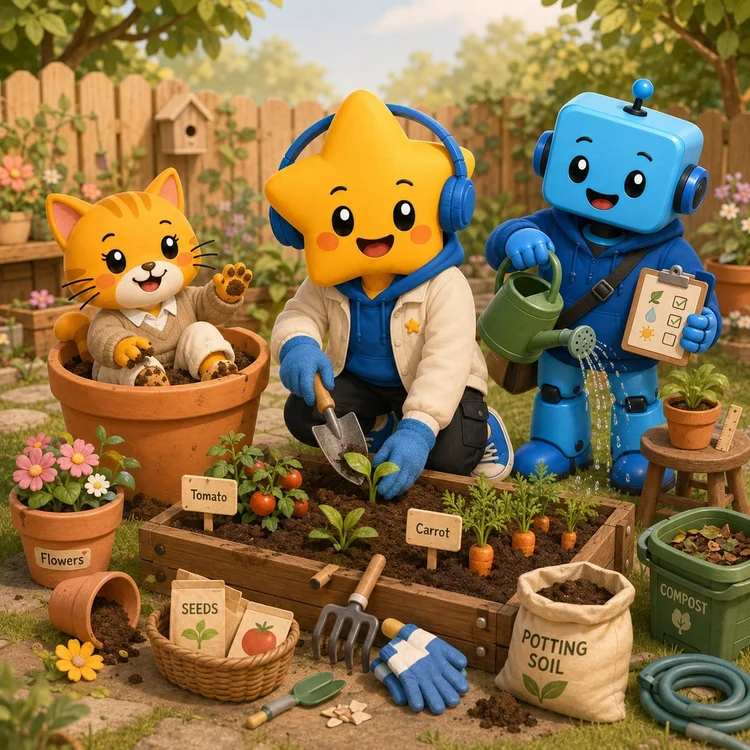
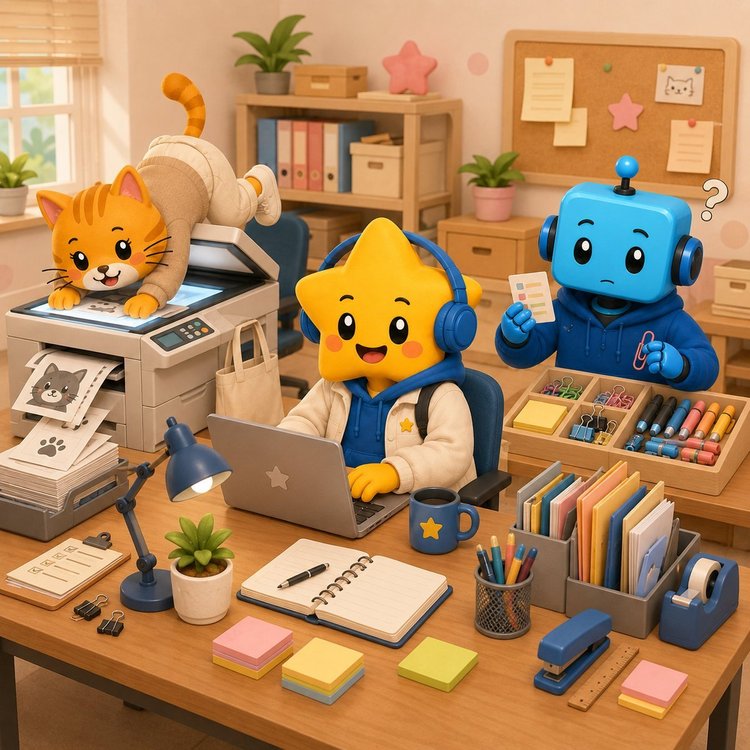
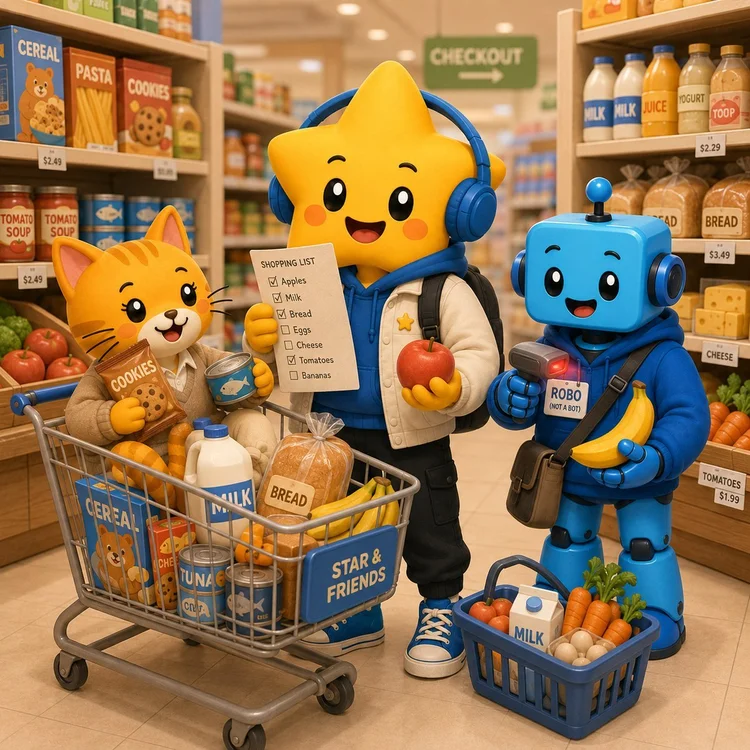
The client's logo became the start of a small cast — Luna, a star with headphones, and her friends, a cat and a robot. Every chat topic opens with its own funny illustration of them, made with AI from the logo's character, so a new topic starts with something to describe — “Look at the picture above — what do you see?” — and new words come from the picture.






How I built it: from design file to working app
I designed every screen in Figma first — wireframes, 17 final frames across the three portals and 41 component sets — then rebuilt them as a working React app in Figma Make, pasting my own frames in as the reference (“Match the Figma frame”). Over three months the build went through 99 saved versions.
What worked was treating the AI as an implementer and staying the designer:
Plan before code
Before a larger change I asked Make to show which components it would reuse, which data it would touch and what might conflict — then wrote the feature as a spec: a teacher's Student Detail page, reusing the Class page shell, read-only.
“Before making any code changes, show me: which existing components you will reuse…”
A type system in one prompt
One heading scale — 32 / 28 / 22 / 18, weight 500 — applied through shared styles across all three portals.
“…globally rather than separately on each screen.”
Fixing the flow, not the screen
“Assign topic” had to open topic selection first, with “Create new topic” as an option inside it — UX logic the AI had got wrong.
One status language across roles
The teacher sees the same pills, bars and session counts as the student.
The human in the loop
When the AI read a selection too narrowly, I widened the scope.
“Yes, do whatever you need to do to fix the icon.”
Pixel polish by pointing
Select an element in the preview, say what it should be — the fastest way to close the last gaps to the design.
Outcome
A live, clickable product instead of a pitch deck: three portals, sign in as any role, real flows from school setup to a student's chat. The client used it to present Talk2Me Nice to schools and to raise funding.
No login needed. Leave the fields empty and click Sign in to open the student view; choose “Teacher” or “Admin” on the sign-in screen to see the other two.
Try the demoNext project
AI tour guide